Install and use TrailSnap on fnOS
The .fpk installer supports x86 fnOS NAS devices and uses the CPU for AI processing. It has been tested on fnOS V1.2.0800. No dedicated GPU or manual Docker configuration is required.
Download and install
- Open the NAS section on the download page and download the fnOS
.fpkinstaller. - In fnOS, open App Center → Manual installation → Upload from computer and select the package.
- Confirm the application source and complete the three fields:
| Field | What to enter |
|---|---|
| Port | Default: 3180. Choose another port if it is already in use |
| Existing photo folder (optional) | The full path of a local photo folder; leave blank to add it later |
| User data folder (required) | An empty folder for TrailSnap user data |
For example, photos might be in /vol1/1000/Photos, with user data in /vol1/1000/TrailSnap. These are examples, not universal defaults. Use the actual paths shown in your NAS file manager. The folders must be separate and must not contain each other.
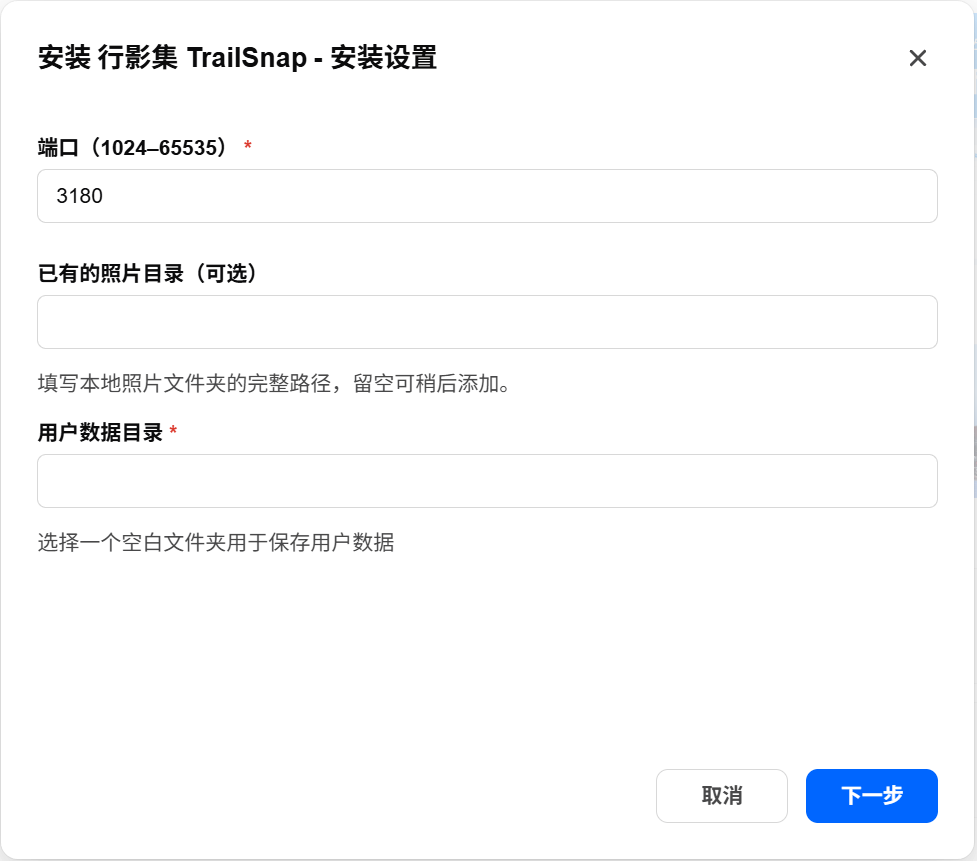
- Complete the installation. The first installation downloads the required container images, so internet access is needed.
- Click Open and create your own TrailSnap administrator account. Other devices can connect at
http://NAS-address:port, for examplehttp://NAS-address:3180.
If the latest release has no .fpk asset yet, use the fnOS Docker guide.
Connect existing photos
In TrailSnap, open Settings → External libraries, refresh the detected folders, select the existing-photos folder, and choose Add selected libraries and scan. Photos appear as scanning progresses.
Source folders are mounted read-only. Their photos are not moved into the user data folder.
Add another folder
- In fnOS, open App Center → Installed → TrailSnap → Application settings → Runtime settings → Edit.
- Enter the full path in the new photo-folder field, then Save and restart.
- In TrailSnap, refresh Settings → External libraries, select the new folder, and add it for scanning.
Repeat these steps for additional folders. Folders with the same name stay separate. After adding more photos to a connected folder, use Rescan in the list of connected folders.
Find uploaded originals
Uploads appear on TrailSnap's Photos page. To find their original files in the NAS file manager, open the user data folder you selected during installation, then:
data/users/<user-ID>/uploadsFiles are grouped by year and month. Do not manually change database, configuration, or thumbnail files. Back up the complete user data folder and your original photo folders.
Update TrailSnap
Packages are currently distributed through GitHub Releases. Once listed in the fnOS application marketplace, reviewed updates can also be obtained through App Center.
For a manual update, download the new .fpk and upload it through App Center → Manual installation. Do not uninstall first. Updates retain your port, data folder, and connected libraries. The upgrade hook backs up the databases and configuration before updating. Reopen TrailSnap and confirm that you can sign in and view your photos.
Early 0.19.1-2 adaptation packages require migration assistance. If an update reports backup or directory-permission errors, keep the existing application and data and ask for help through the feedback platform. Do not bypass the error by uninstalling and reinstalling.
Uninstalling does not intentionally clear your selected user data or external photo folders. Keep an independent backup. Check database compatibility before attempting a downgrade.