TrailSnap User Guide
Welcome to TrailSnap! This guide covers the main features and how to use them.
1. Quick Start
Dashboard Overview
After logging in, you will see the system dashboard, which includes:
- Data Overview: Displays statistics such as total photos, albums, and footprint points.
- Recent Memories: Displays recently uploaded photos or activities in a timeline format.
- Feature Shortcuts: Quick access to albums, tickets, map footprints, and other features.
Add External Library
- Click "Settings -> External Libraries" in the navigation bar.
- Enter the path of the external library (this is the Docker container path).
- Example Docker mount:
/home/user/photos:/app/Photos/ - If you want to add the original folder
/home/user/photos/sea, then add/app/Photos/seain TrailSnap - If you want to add the whole
/home/user/photosdirectory, then add/app/Photos/
- Example Docker mount:
- Click Confirm, and the system will automatically scan all photos in that directory (task progress can be viewed in "Settings -> Task Management").
- See Directories for common issues.
Map Service
If you want map features (view photos on map, edit custom scenic spots, etc.), make sure you configured your map provider in Settings → Map Service. See Map Settings.
2. Album Management
Create Album
- Click "Albums" or the "New Album" button in the navigation bar.
- Enter the album name, description, and select an album cover (optional).
- Click Confirm to create.
Upload Photos
- Enter any album or click the global "Upload" button.
- Supports drag-and-drop upload or click to select files.
- Supports batch upload; the system will automatically read the photo's EXIF information (shooting time, location, etc.).
Photo Browsing
- Timeline View: Arranges photos in chronological order of shooting, suitable for reviewing journeys.
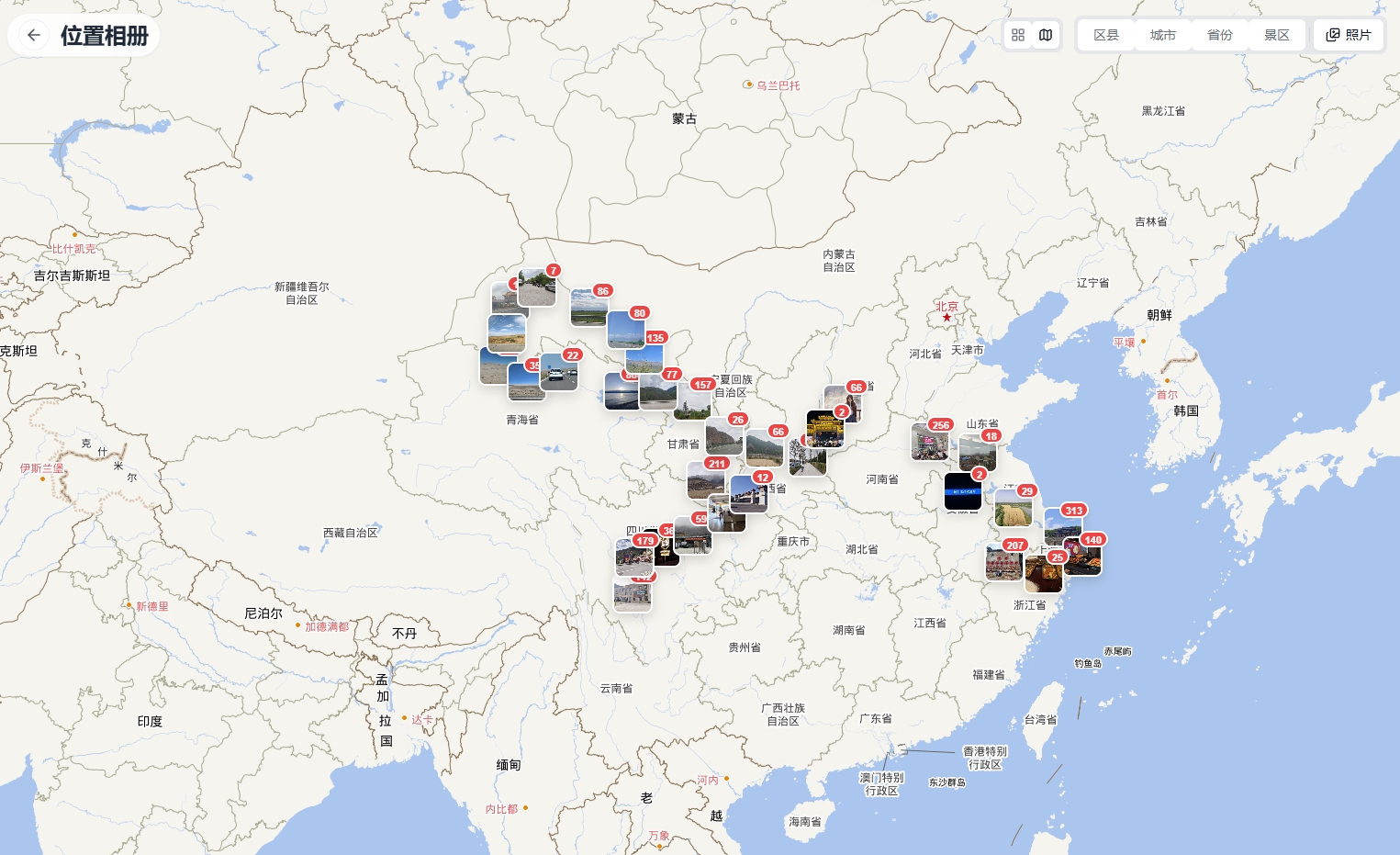
- Map View: Displays photo shooting locations on the map, lighting up your footprints.
- Detail View: Click on a photo to view the large image and detailed metadata (ISO, shutter, device model, etc.).
3. Smart Features
TrailSnap has built-in powerful AI services to provide you with the following intelligent experiences:
Face Recognition & Clustering
- The system automatically analyzes uploaded photos and identifies faces.
- Automatically groups photos of the same person into "People Albums".
- You can name the identified people, and the system will automatically associate all photos of that person.
Smart Search (OCR & Content Recognition)
- Text Search: Supports searching for text in photos (such as street signs, menus, text on tickets).
- Semantic Search: Search by directly describing the photo content, such as "sunset by the sea", "friends skiing", AI can understand your natural language description.
4. Itinerary & Tickets
This is a featured function of TrailSnap designed for travelers.
Ticket Management
- Automatic Recognition: Upload photos of train tickets, flight tickets, scenic spot tickets, or concert tickets.
- OCR Extraction: The system automatically extracts key information from tickets (departure, destination, time, train/flight number, seat number, etc.).
- Manual Entry: If recognition is incorrect, manual modification or supplementation of information is supported.
Itinerary Timeline
- The system automatically generates a complete "Travel Timeline" based on your ticket times and photo times.
- You can clearly see the complete trajectory from departure to return.
5. System Settings
On the settings page, you can configure the following:
- Personal Information: Modify avatar, nickname, password.
- Theme Settings: Switch between light/dark modes, or follow the system automatically.
- Storage Settings: View storage space usage.
- Task Management: View background task progress (such as ongoing AI recognition tasks, thumbnail generation tasks).
If you have any questions, see Feedback or the Developer Guide.